Installation guide (JP)
Follow the guide for your platform below, then continue with First Time Setup.
Windows
As of 2025/09/24, you will need to use Hachimi Edge v0.14.2 or newer due to a big game update. If you run into issues, check out Troubleshooting.
WARNING
Some anti-cheats (such as Vanguard used in LoL/Valorant) hate seeing DLL redirection enabled on your system. You'll need to disable it every time you want to play affected games. Here is a program to quickly toggle it. Run it until it says it has disabled DLL redirection and restart your computer.
INFO
DotLocal is currently only used on the DMM version. Play on Steam to bypass it.
- Download the latest Installer and run it.
- If you used non-edge Hachimi before, click Uninstall first.
- Choose your game version from the lower box.
- Check that the install directory is correct and change it if needed.
- Click Install.
When installing for the first time, the installer might ask to you enable DotLocal DLL redirection. Press OK and it will be enabled for you. You must RESTART (not shutdown) your computer after enabling it.
Manual install
TIP
Only add the file extensions (.exe, .dll) when you rename if you see them on the original file names. If you don't, it means Windows is set to hide them, and your rename will end with .exe.exe, breaking the game. Does not apply to folders.
TIP
Guide based on DMM. If you're using Steam, replace umamusume.exe with UmamusumePrettyDerby.exe in the steps below.
- Refer to the "Configure the registry" section in this article to enable DLL redirection. Restart your computer after you're done.
- Download the latest
hachimi.dllfrom the Releases page. - In the game install folder, create a new folder named
umamusume.exe.localand move the downloaded DLL file there. Rename it toUnityPlayer.dll. - Download the latest
cellar.dllfrom the Cellar Releases page. - Move it to
umamusume.exe.localand rename it toapphelp.dll.
Migrating from the deprecated plugin shimming method
You will need to cleanly uninstall Shinmy first; make sure that it isn't running when you're deleting it because it survives for up to 30 seconds after DMM closes and can restore itself. The easiest way to do this is to just use the installer (which also happens to be an uninstaller), it will clean up everything properly for you.
After that, you can just uninstall Hachimi as normal.
Android
WARNING
Patching the game on Android will disable the Google Play Store for the game, including purchases. You can try to use the game developer's store.
DANGER
If you already have save data from playing, make sure you have set up a Data Link or Cygames ID before installing the patched version to transfer your progress. Login through a Google Play account is disabled.
DANGER
If you have the unpatched game installed, you must uninstall it first. The patched game can later be updated without uninstalling.
WARNING
Do not get your APK from APKPure, it's known to cause problems. The recommended source is Qoopy, use ID 6172.
TIP
On Xiaomi devices without HyperOS, try disabling MIUI Optimizations before installing.
- If you used UmaPatcher before, open its settings page and export the signing key somewhere safe.
- Uninstall the original game if you have not patched it before using either UmaPatcher version.
- Download and install the latest version of UmaPatcher Edge.
- Prepare an installation package for the game, which can be:
- Split APK files: A base APK file and one of the split config APKs (config.arm64_v8a, config.armeabi-v7a, etc.), choose only one split config that's suitable for your device. This is currently only used by the JP version.
- Single APK file: A full, fat APK file.
- XAPK file: A ZIP file that contains the split APK files (with the extension renamed to XAPK).
- Open UmaPatcher, import the exported signing key if needed, and choose Normal install. Select the file(s) that you have prepared.
- Tap on Patch to start the patching and installation process.
⚠️ You'll need to repeat this process from step 4 whenever the app updates. You do not need to uninstall the game to update.
Patch without uninstall + store updates (requires root)
UmaPatcher includes a rooted install option that doesn't require you to uninstall the game nor deal with APKs, letting you update normally from any app store.
With the game installed, tap on the card at the top of the patcher's home screen to select the app that you want to patch (if needed). Then select "Direct install" as the install method and tap on Patch. No input files are needed.
You'll need to patch the game with UmaPatcher again whenever the game updates.
Manual install (not recommended)
- Build or download the prebuilt libraries from the Releases page.
- Extract the APK file of the game. You might want to use apktool for this.
- Rename the
libmain.sofile in each of the folders insidelibtolibmain_orig.so. - Copy the proxy libraries to their corresponding folders (e.g.
libmain-arm64-v8a.sogoes tolib/arm64-v8a). Rename them tolibmain.so. - Build the APK file and install it.
First Time Setup
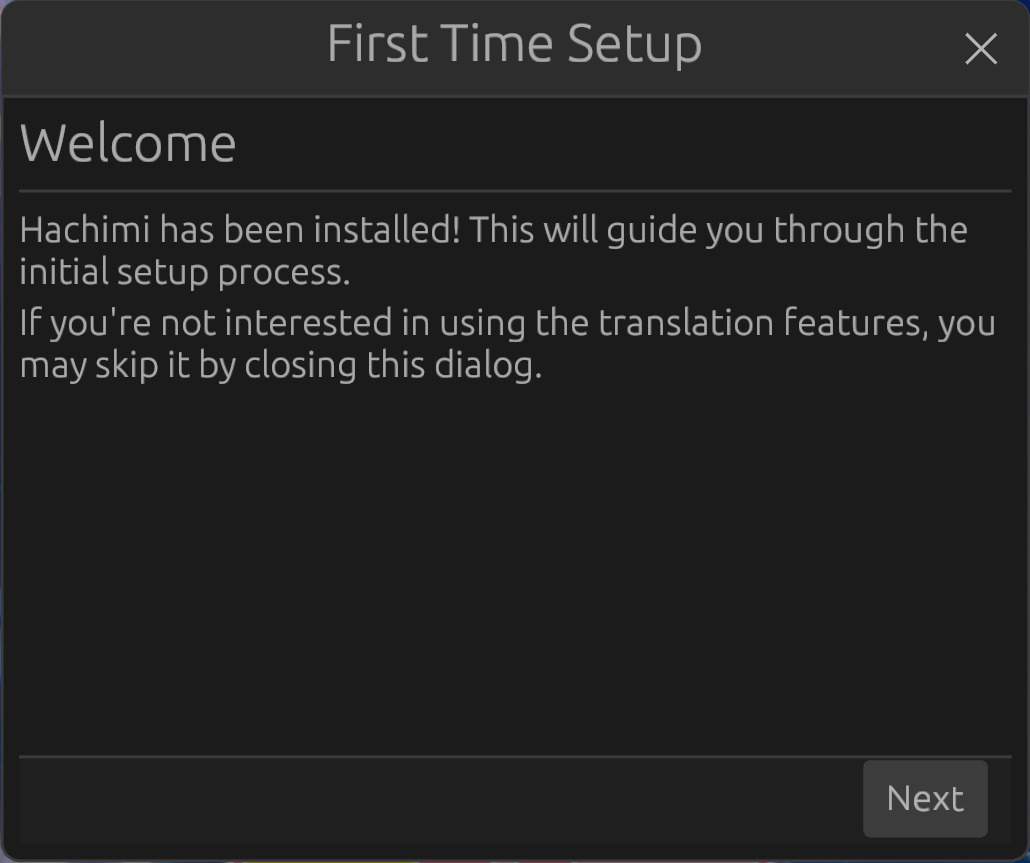
Upon launching the game for the first time after installing Hachimi, you should be greeted with this dialog:
WARNING
If you don't see it after upgrading to Edge for the first time, open it from the Hachimi menu and complete the setup. Not doing so will result in outdated translations and corrupted texture issues.
INFO
If you don't see it otherwise, Hachimi has not been installed correctly. Please read the install guide carefully and try again, or look at Troubleshooting.
Tap on Next and choose your preferred translation source, then tap on Done to save your configuration and start the update check.
Hachimi will now prompt you to download a new translation update, click on Yes to start downloading the translation files.
You can return to this dialog later to change your translation source through the Hachimi menu.